

Support
Questions about Coro? We’re here to help. Most answers are below, and in Help inside the app (menu → Help). If you’re stuck, write to hello@corobooks.com and we’ll get back to you.
Making books
How do I make a book?
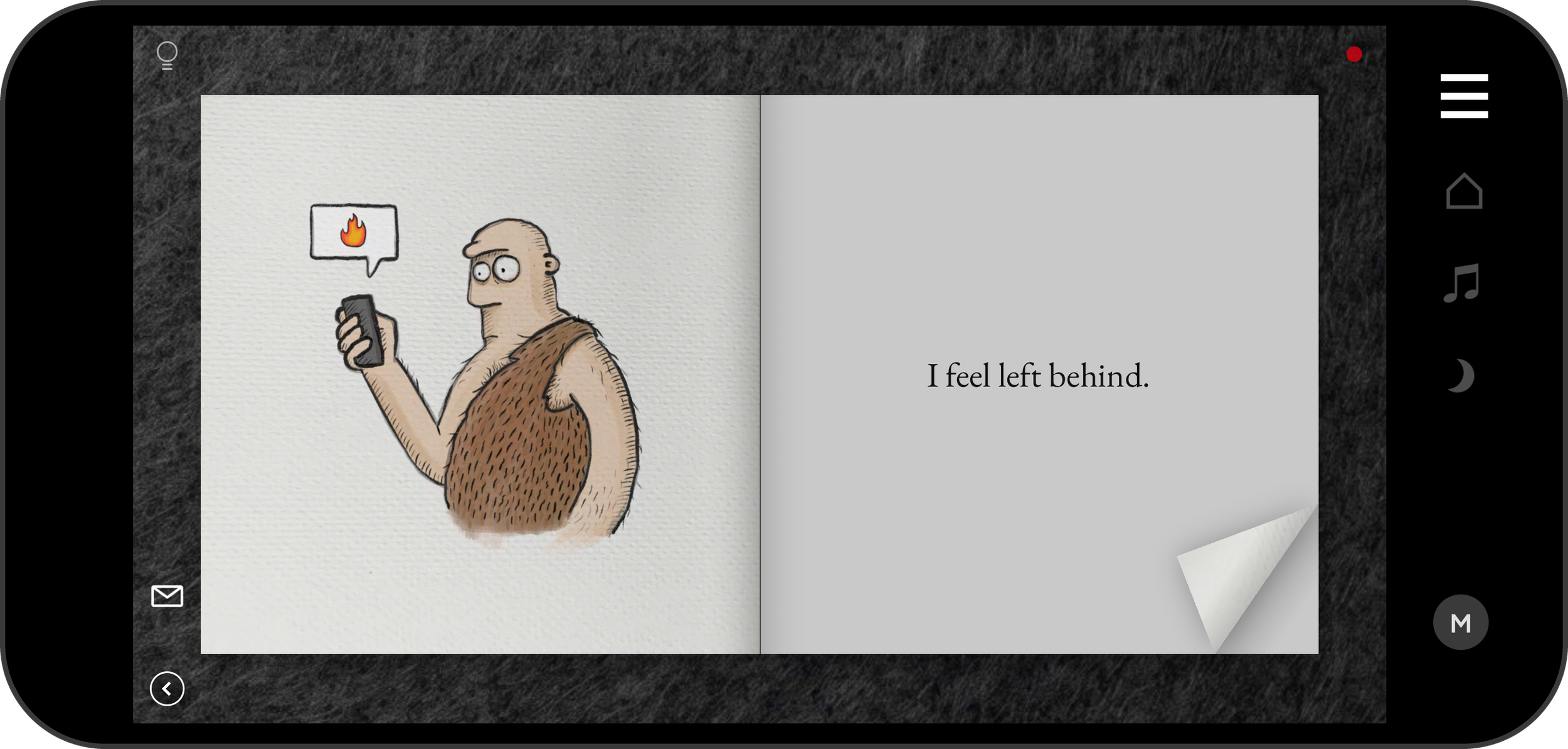
Open the menu and choose My Workspace, then tap Let’s make a book. Coro asks what your book is about, then you make a cover. On each page, tap the picture square to add a photo or a drawing, and tap below it to write the words. (changed) To turn to the next page, tap the arrow in the top right corner or the folded corner of the page. The green square at the bottom right opens What’s next?: add a page, design a cover, save for later or finish.
Can I make a book from lots of photos at once?
Yes. When you start a new book, Upload Images comes right after the cover. Pick how the pages go (a picture, then words, or a picture on every page), then choose up to 64 photos. Coro puts them in order as pages, and you add the words.
Can the words go on top of a picture?
Yes, with the Advanced page editor, part of the Coro Membership. A grown-up turns it on in Settings, under Parental controls. Then tap Text options in the words editor to choose the layout, how the words look and their size, and drag them anywhere on the picture.
Where are the books I haven’t finished?
In My Workspace, under My Books in Progress. When a book is ready, choose Finish and publish to library and it moves to My Book Collection in My Library.
Can I draw on a photo?
Yes. Tap a photo on a page, then the scissors to edit it, and choose Draw on this photo. In the drawing tools you can also add a photo with the picture button between Layers and Zoom.
Voices and sharing
How do I record my voice?
Open a book and tap the red record button at the bottom. Choose Start Recording and read each page. You can listen to, trim or remove pages in Your Recordings.
How do I send a book to family?
Tap the envelope beside the book, or Share Book on its last page, and pick how to send it. The book travels as a .zip file. Whoever gets it opens it in Coro (see Opening a book someone sent you, link to /open), and can add their own voice. Sharing is always free, also for families who aren’t members.
Membership
What does the membership include?
Your first three books are free to make. The Coro Membership ($3.99 a month or $29.99 a year, each with a 7-day free trial) lets you make as many books as you like, with the full drawing set, (new) the Advanced page editor for words over pictures, and a PDF for printing. In the Book Store, some books are free, with a new free book every month. Books by artists are bought one at a time, members too, and half of what Coro earns from each goes to its artist. A book you bought comes back on a new device with Restore Purchases.
How do I cancel?
On your iPhone or iPad, open Settings, tap your name, then Subscriptions, and choose Coro. Cancel at least a day before the trial or the current period ends. Apple handles all payments and refunds; you can ask for a refund at reportaproblem.apple.com.
I have a new phone. How do I get my membership back?
Sign in with the same Apple ID, open the membership screen in Coro and tap Restore Purchases.
How do I move my books to a new phone?
Your books live on your device, not online. Set up the new iPhone or iPad from a backup of the old one (iCloud or your computer), and Coro comes along with your books and recordings.
For grown-ups
What can my child see and do?
Open Settings in the menu. It asks a grown-up question first (or your four-digit passcode). You can switch the Book Store, My Notes, making books, recording, sharing and the hint bubbles on or off, and choose how books play. You can also let everyday things (Settings, photos, deleting books) skip the grown-up question; buying, sharing, printing and links out of the app always ask.
How do I delete my account?
In the app, open your profile and choose Delete account. It’s removed for good; books and recordings on your device stay there. See Privacy for what an account stores.
Still need help? Email hello@corobooks.com. Tell us which device you use and what happened, and a screenshot helps.